Facebook Cover Photo Size 2026: The Mobile Crop Trap, Safe Zone, and Fixes
Your cover photo looks fine on desktop and broken on mobile, because Facebook displays the same upload at two different aspect ratios. This guide covers the exact 2026 safe zone, the profile-picture overlap, every cover size on Facebook, and the upload errors people hit most often.
Facebook's cover photo is the only major Facebook image that displays at two completely different aspect ratios depending on the device. Desktop shows 820 × 312 pixels (2.63:1). Mobile shows 640 × 360 (1.78:1). Same upload file, different rectangle cropped to fit each screen. The mismatch is why a cover that looks balanced on a laptop arrives edge-cropped and bottom-buried on a phone, and it is the reason most people quietly accept that their cover looks 'broken' on mobile.
Facebook displays the same cover photo upload at two completely different aspect ratios depending on the device. Desktop renders 820 x 312 pixels (roughly 2.63:1). Mobile renders 640 x 360 pixels (roughly 1.78:1, the same as 16:9 video). The image you upload is one file. Facebook stretches and crops it at view time to fit whichever shape the viewer is using. This guide covers the exact 2026 dimensions for every Facebook cover type, the safe zone that survives both crops, the profile-picture overlap, and the upload errors people hit most often.
Why your cover looks broken on mobile (the real reason)
Cover photos are the only major Facebook image where the desktop and mobile clients display different rectangles of your image. Profile pictures, posts, and ads all crop the same way regardless of device. Cover photos are special because Facebook tries to fit the same upload onto two screens with very different aspect ratios.
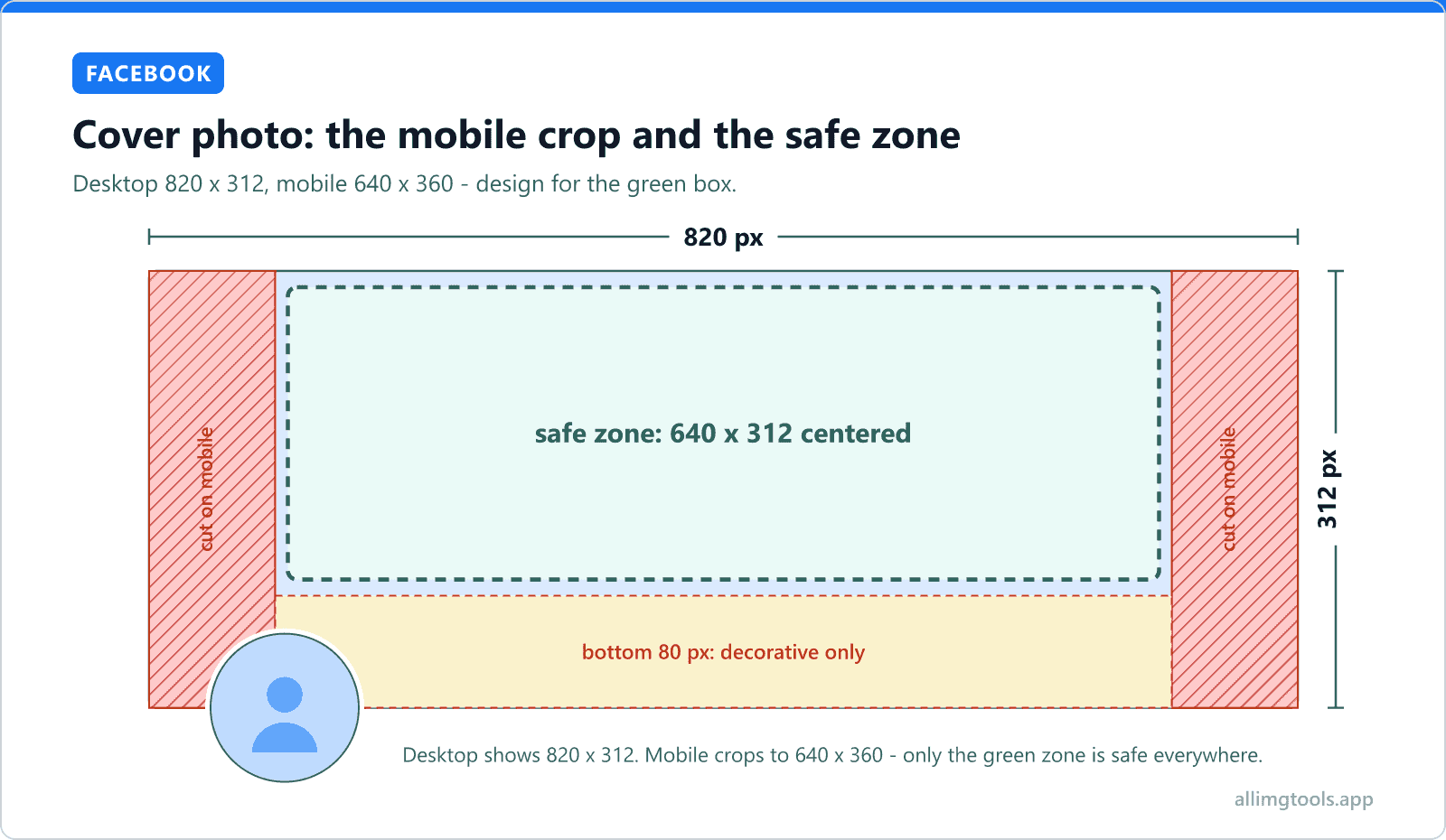
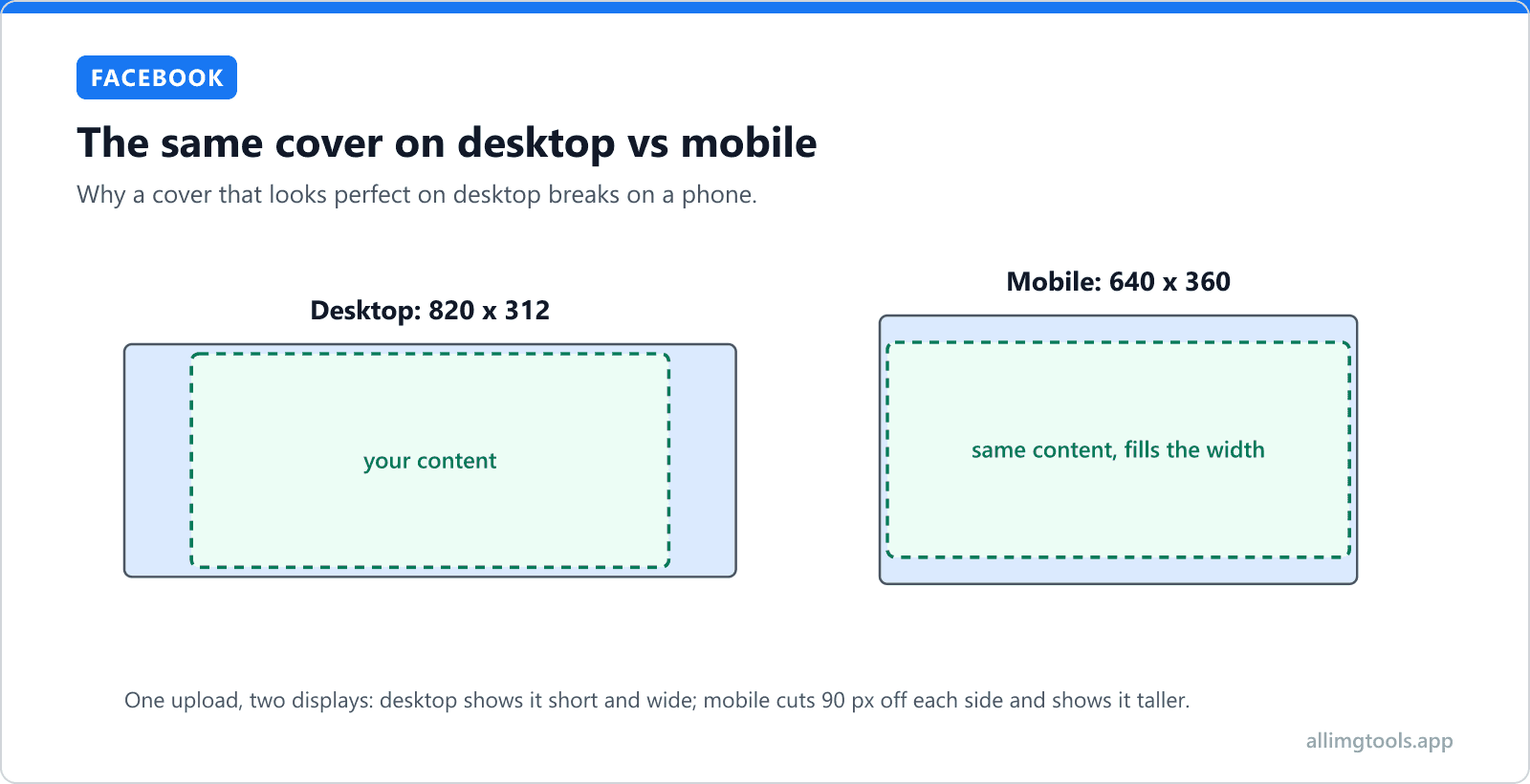
Desktop browsers render the cover at 820 x 312 pixels (aspect ratio 2.63:1). Mobile apps render at 640 x 360 (aspect ratio 1.78:1). To get from one to the other, Facebook does not just resize. It crops. The top and bottom are extended on mobile (more vertical area visible), and the left and right are clipped (less horizontal area visible). Approximately 90 pixels of width get cut off each side of the 820 px desktop view when viewed on mobile.
The practical consequence: if your cover photo has important content within 90 pixels of the left or right edges, that content will be invisible to anyone visiting your profile on a phone. And since most Facebook traffic is mobile, your cover photo's effective viewport for most viewers is the central 640 pixels, not the full 820.
The Facebook cover safe zone (the only number that matters)
The safe zone is the central area of your cover photo that stays visible on every device. Anything you place inside the safe zone shows up on both desktop and mobile. Anything outside might be clipped, covered by the profile picture, or never rendered.
| Zone | Pixel dimensions | What stays visible |
|---|---|---|
| Full upload | 820 x 312 px | Only on desktop, full width |
| Mobile-visible | 640 x 360 px (centered) | On phones, with top/bottom expansion |
| Safe zone (recommended) | 640 x 312 px (centered) | On every device, with no clipping |
| Profile picture overlap (desktop) | 168 x 168 px (bottom-left) | Covered by avatar circle |
| Profile picture overlap (mobile) | 100 x 100 px (bottom-center) | Covered by avatar circle |
If you remember nothing else: design at 820 x 312 px, but keep all important text, logos, and faces inside the central 640 x 312 px rectangle. Add a 90-pixel buffer on each side. Leave the bottom-left (desktop) and bottom-center (mobile) clear for the profile picture overlap.
You can preview the exact mobile crop on your design without uploading by using the Facebook Cover resize tool, which renders the desktop view and the mobile crop side by side so you see where edges go before publishing.
The profile picture overlap zone
On profiles and pages, Facebook overlays the profile picture on top of the cover photo. The avatar is displayed as a circle. The position differs by device.
Desktop overlap
On desktop browsers, the profile picture sits at the bottom-left of the cover photo. The circle is 168 x 168 pixels. The center of the circle is positioned approximately 36 pixels from the left edge of the cover and 90 pixels from the bottom. This means the area approximately 0-204 pixels from the left and 0-180 pixels from the bottom is partially or fully covered.
Mobile overlap
On mobile, the profile picture sits at the bottom-center of the cover. The circle is 100 x 100 pixels. The center of the circle is at the horizontal midpoint of the cover and approximately 50 pixels from the bottom. The covered area is roughly the central 100 pixels wide, bottom 100 pixels tall.
What this means for design: leave the bottom 180 pixels clear of important content for desktop, and additionally avoid placing important content in the bottom-center 100 pixels for mobile. The simplest rule that survives both: do not put critical content in the bottom 25% of your cover photo at all. Use that area for decorative background only.
Pre-set to Facebook's recommended dimensions with desktop and mobile preview so you see what survives the crop on each device.
The complete 2026 Facebook image cheat sheet
Every Facebook image asset, its recommended dimensions, maximum file size, and supported formats. Use this as the reference when you need a number quickly.
| Asset | Recommended size | Max file size | Formats |
|---|---|---|---|
| Profile / Page Cover | 820 x 312 px (2.63:1) | 100 MB | JPG, PNG |
| Business Page Cover | 820 x 360 px (2.28:1) | 100 MB | JPG, PNG |
| Group Cover | 1640 x 856 px (1.91:1) | 100 MB | JPG, PNG |
| Event Cover | 1920 x 1005 px (1.91:1) | 100 MB | JPG, PNG |
| Profile Picture | 170 x 170 px (1:1) | Auto-compressed | JPG, PNG |
| Story | 1080 x 1920 px (9:16) | 4 GB | JPG, PNG, MP4 |
| Feed Image (single, landscape) | 1200 x 630 px (1.91:1) | 30 MB | JPG, PNG |
| Feed Image (single, square) | 1080 x 1080 px (1:1) | 30 MB | JPG, PNG |
| Feed Image (single, portrait) | 1080 x 1350 px (4:5) | 30 MB | JPG, PNG |
| Marketplace Listing | 1200 x 1200 px (1:1) | 8 MB | JPG, PNG |
| Ad Image (single) | 1200 x 628 px (1.91:1) | 30 MB | JPG, PNG |
| Carousel Ad Image | 1080 x 1080 px (1:1) | 30 MB | JPG, PNG |
| Link Preview | 1200 x 630 px (1.91:1) | 8 MB | JPG, PNG |
| Reels Video | 1080 x 1920 px (9:16) | 4 GB | MP4, MOV |
| Live Stream Thumbnail | 1280 x 720 px (16:9) | 10 MB | JPG, PNG |
Facebook's 100 MB cover photo cap is the upload-side limit. In practice every cover photo you upload gets re-encoded server-side to roughly 80-150 KB regardless of how large your source is. Uploading at high quality is good (more to compress from), but anything past 1-2 MB is wasted bandwidth on your end.
How Facebook processes your cover after upload
Every cover photo you upload goes through Facebook's image pipeline before being served to viewers. Knowing what the pipeline does helps explain why your cover sometimes looks worse than the file you uploaded.
Re-encoded as JPEG at 70-85% quality
Facebook converts uploaded cover photos to JPEG (regardless of whether you uploaded PNG) and re-encodes at approximately 70-85% quality, served as WebP to browsers that support it. The result is a file roughly 30-50% smaller than your source. JPEG re-encoding hits photographs minimally but hits sharp-edged graphics (text, logos, illustrations) hardest. If your cover has text that looks soft or has color fringes around the letters after upload, this re-encoding is the cause.
Multiple resampled sizes generated
Facebook generates several resampled versions of your cover for different display contexts. A small thumbnail (around 250 x 95 px) appears in the news feed when someone shares your page. A medium version (around 640 x 244 px) renders on mobile. The full version (around 820 x 312 px or higher on retina displays) renders on desktop. Each is independently encoded.
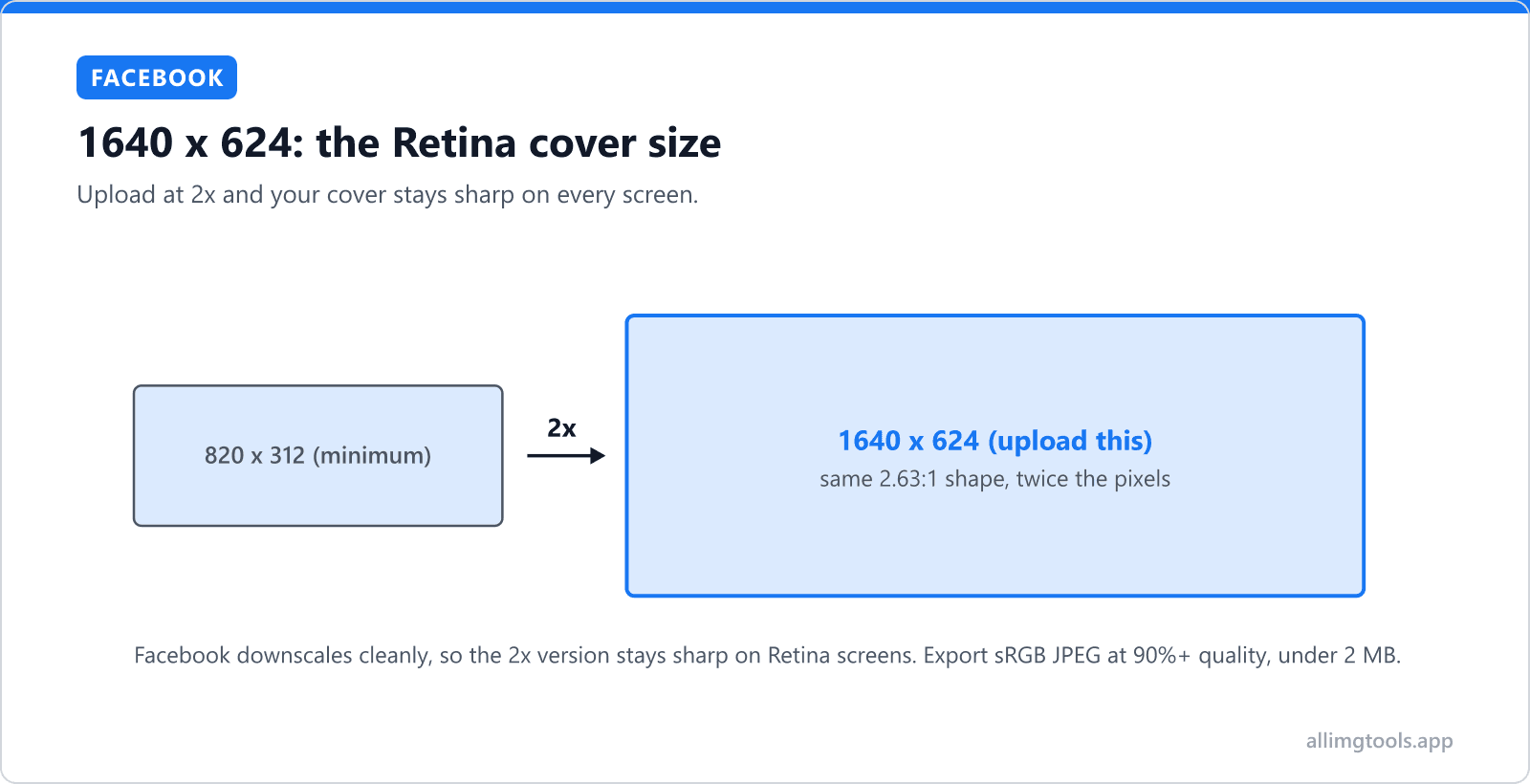
So upload at a higher resolution than 820 x 312. Facebook handles the downscaling, and downscaling produces sharper results than upscaling. A 1640 x 624 px cover (exactly 2x) gives Facebook room to render crisp on Retina displays without upscaling. Upload at 1640 x 624 px and let Facebook generate the smaller versions itself.
Color space conversion
If you export your cover from Photoshop with a wide-gamut color profile (Adobe RGB, ProPhoto, etc.), Facebook converts it to sRGB at upload. The conversion is lossy and can shift your colors, especially saturated reds and greens. Always export your cover as sRGB to avoid the color shift.
Mobile vs desktop: how Facebook displays your cover differently
The same upload renders at different sizes and aspect ratios on Facebook's mobile apps vs the desktop client. The table below shows what each device actually displays.
| Context | Desktop display | iOS app display | Android app display |
|---|---|---|---|
| Cover photo (profile / page) | 820 x 312 px (2.63:1) | 640 x 360 px (1.78:1) | 640 x 360 px (1.78:1) |
| Cover photo (business page) | 820 x 360 px (2.28:1) | 640 x 360 px (1.78:1) | 640 x 360 px (1.78:1) |
| Cover photo (group) | 1640 x 856 px (1.91:1) | 1080 x 565 px (1.91:1) | 1080 x 565 px (1.91:1) |
| Cover photo (event) | 1920 x 1005 px (1.91:1) | 1080 x 565 px (1.91:1) | 1080 x 565 px (1.91:1) |
| Profile picture overlay (size) | 168 x 168 px | 100 x 100 px | 100 x 100 px |
| Profile picture overlay (position) | Bottom-left | Bottom-center | Bottom-center |
| Cover preview in news feed | 470 x 174 px | Full width, 16:9 crop | Full width, 16:9 crop |
Notice that the group and event cover ratios (1.91:1) match between desktop and mobile. Only the profile and page cover has the dramatic desktop-to-mobile aspect ratio shift. This is because Facebook treats profile/page covers as a legacy format that predates mobile-first design, while groups and events were redesigned more recently with the same aspect ratio across devices.
Managing branding across multiple platforms? The X (Twitter) profile picture and header guide breaks down avatars, headers, and the circle crop trap on X, and the Discord image size guide walks through Discord server icons, banners, and avatars.
Cover photo problems and how to solve them
My cover photo looks blurry after upload
Two common causes. First, you uploaded a small image and Facebook had to upscale it to 820 x 312. Re-upload at 820 x 312 or larger (1640 x 624 is ideal for Retina displays). Second, you uploaded a JPEG that was already heavily compressed (downloaded from another website, saved at low quality, etc.). Facebook re-compresses on top of it, and the stacked quality loss is visible. Start with a high-quality source (PNG or JPEG at 90%+ quality) so Facebook's re-encoding has more to work with. If the source is too large for upload, compress with quality control before uploading.
The bottom-left or center of my cover photo is missing
Not missing, just covered by your profile picture. On desktop the profile picture covers approximately the bottom-left 168 x 168 px area. On mobile it covers the bottom-center 100 x 100 px area. Reposition important content above the bottom 25% of the cover, or use the bottom area for decorative background only.
My cover photo's left or right edge is missing on mobile
Facebook is cropping the desktop 820 x 312 to a mobile 640 x 360 aspect ratio. About 90 pixels get cropped from each side. The fix: keep important content in the central 640 px of your design and treat the outer 90 px on each side as decorative background that can be cut.
My cover photo got rejected as too large
Facebook's cover photo file size cap is 100 MB. In practice, files over 5-10 MB sometimes fail with no specific error, especially on slower connections. If your cover is larger than 5 MB, compress it to under 2 MB before uploading. Quality loss is negligible at that size.
Why does my logo have color fringes around the edges
JPEG re-encoding. Facebook converts uploaded covers to JPEG even if you uploaded a PNG. JPEG handles sharp color transitions (like logo edges against a background) poorly, introducing 1-2 px color halos around high-contrast edges. The fix: keep important text and logos at high contrast against simple backgrounds, avoid placing them on busy textured backgrounds, and accept that JPEG re-encoding is a constraint of Facebook's pipeline (PNG is silently converted).
My HEIC photo from iPhone won't upload
Facebook accepts JPEG and PNG. HEIC files from iPhones (the default since iOS 11) don't upload reliably. Convert HEIC to JPG before uploading. To prevent this for future photos, change your iPhone setting at Settings > Camera > Formats > Most Compatible to save new photos as JPEG.
Pages vs Profiles vs Groups vs Events: which size when
Four different cover photo contexts, four different sizes. The most common confusion: people use the profile cover dimensions (820 x 312) for their group or event cover and the result looks awkwardly squashed. The reason is that group and event covers use a wider aspect ratio (1.91:1) than profile and page covers (2.63:1).
| Context | Dimensions | Aspect ratio | Notes |
|---|---|---|---|
| Personal Profile | 820 x 312 px | 2.63:1 | Wide rectangle, avatar overlaps bottom-left. |
| Business Page | 820 x 360 px | 2.28:1 | Slightly taller than personal profile. |
| Facebook Group | 1640 x 856 px | 1.91:1 | Closer to a square. Bigger canvas. |
| Facebook Event | 1920 x 1005 px | 1.91:1 | Same ratio as group, larger native size. |
| Live Stream Cover | 1280 x 720 px | 16:9 (1.78:1) | Used as the live preview thumbnail. |
If you are designing one cover image to use across multiple contexts, design at the largest size (1920 x 1005 for events) at 1.91:1 ratio and create cropped versions for profile/page (820 x 312) and group (1640 x 856) separately. There is no single cover dimension that works for all four.
File format: JPG vs PNG for Facebook covers
Facebook converts uploaded covers to JPEG server-side regardless of input format. This affects format choice in a non-obvious way.
JPG covers compress better at upload (smaller file = faster upload) and round-trip through Facebook with minimal additional quality loss. Recommended for: photographs, gradients, anything without sharp text or hard edges.
PNG covers preserve sharp edges at upload but get converted to JPEG anyway, introducing the JPEG artifacts on the round trip. The upload is larger and the result is no better than uploading JPEG directly. PNG is recommended only when: you have transparency that you need to preserve until Facebook applies a background (rare), or you want the source file you keep on disk to be lossless for future re-export (in which case export a JPEG copy for upload).
Quality setting: export JPEG at 90%+ quality. The file will be larger but Facebook's re-compression produces a noticeably better result than starting from 80% or lower. The difference between 90% and 100% upload quality is minimal after Facebook's pipeline runs, so 90% is the sweet spot.
Quick checklist before you upload
- Use the right dimensions for your context: 820 x 312 for personal/page covers, 1640 x 856 for groups, 1920 x 1005 for events. The cheat sheet table above covers all of them.
- Design at 2x resolution (1640 x 624 for a profile cover) for crisp Retina rendering. Facebook downscales gracefully but does not upscale gracefully.
- Keep all important content (text, logos, faces) inside the central 640 x 312 px safe zone for profile/page covers. The outer 90 px on each side gets clipped on mobile.
- Avoid placing critical content in the bottom 25% of the cover. The profile picture overlays the bottom-left on desktop and bottom-center on mobile.
- Export as JPEG at 90%+ quality with sRGB color profile. PNG gets converted to JPEG anyway and adds upload size without benefit.
- Test at small size. Shrink your design to 470 x 174 px (the news feed preview size) and check that key elements are still recognizable.
- Convert HEIC to JPEG before uploading if shooting on iPhone. Facebook's HEIC support is inconsistent.
- Keep file size under 2 MB. Facebook accepts up to 100 MB but uploads above 5 MB sometimes fail silently on slower connections.
How to design a Facebook cover that works on every device
There are two approaches to designing a Facebook cover that survives both desktop and mobile. The first is conservative: design at 820 x 312, but place all important content inside the central 640 x 312 safe zone. The outer 90 pixels on each side are visible only on desktop and used for background extension. This guarantees nothing important is clipped on mobile, but it wastes 22% of the desktop canvas.
The second approach is dual-design: create two source files. One at 820 x 312 with content using the full canvas (for desktop). One at 640 x 360 with the same critical content recomposed for the narrower mobile aspect ratio. Upload the 820 x 312 version. The mobile crop will look different from what desktop viewers see, but each version is independently optimized. Use this approach if you can deal with two versions and have a brand-critical cover. For most cases, the first approach is enough.
If you are doing the resize step manually, the Facebook Cover resize tool is pre-set to 820 x 312 with dual desktop and mobile preview so you can see what survives the crop on each device before exporting.
Pre-set to 820 x 312 with dual desktop/mobile preview. See the mobile crop and profile-picture overlap before downloading.
The rule that fixes most of these problems
The single most useful number for Facebook cover photos is the safe zone: 640 x 312 pixels in the center of an 820 x 312 design. Place every important element inside that rectangle. Leave the bottom 80 pixels for decorative background only (to dodge the profile picture). Treat the outer 90 px on each side as expendable.
Design at 1640 x 624 if you want maximum sharpness on Retina displays. Export as sRGB JPEG at 90%+ quality. Keep file size under 2 MB. The cheat sheet table above lists every other Facebook image type if you need it. If you also run X or Discord, the X profile picture guide handles avatars and headers on X, and the Discord image size guide walks through every Discord asset type.
The short version
The Facebook cover photo is 820 x 312 on desktop but mobile crops the same upload to 640 x 360, so keep everything important inside the central 640 x 312 safe zone and treat the outer 90 pixels on each side as expendable. Design at 1640 x 624 for Retina sharpness, export sRGB JPEG at 90%+ quality, under 2 MB. The Facebook cover resizer previews the mobile safe zone as you crop.
Frequently Asked Questions
Tools mentioned in this article
Resize for Facebook Cover
Pre-set to 820 x 312 with desktop and mobile preview
Crop Image
Crop to 2.63:1 (profile/page) or 1.91:1 (group/event)
Compress Image
Get cover photo under 2 MB before uploading
HEIC to JPG
Convert iPhone photos before uploading to Facebook
Compress for Website
Reduce cover file size while keeping sharpness
Related articles
X (Twitter) Profile Picture Size 2026: Dimensions, Display, Circle Crop
Exact pixel sizes for X profile, header, posts, and Premium animated avatars. Plus what X does to your upload, mobile vs desktop display, and the file size errors that block uploads.
Discord Image Sizes 2026: Avatar, Banner, Server Icon, Emoji
Exact pixel sizes, file size limits, and the Free vs Nitro differences for every Discord image type. Plus what Discord does to your uploads, and why your avatar looks blurry.
Why Are My Instagram Photos Blurry After Upload? (5 Real Reasons + Fixes)
Instagram compresses every photo on upload. Here are the 5 specific reasons your photos look blurry, and the exact dimensions, file size, and format that survive Instagram's compression intact.