X (Twitter) Profile Picture Size 2026: Dimensions, Display Rules, and the Circle Crop Trap
Profile picture is 400 × 400, header is 1500 × 500. The hard part isn't the dimensions, it's the circle crop, the file size limits, and what X does to your image after upload. Here's the practical guide that bridges all three.
Profile picture: 400 × 400, displayed as a circle. Header banner: 1500 × 500 at a 3:1 strip. Single in-post image: anywhere from 1080 × 1080 to 1600 × 900 depending on aspect ratio. Those are the sizes X publishes, and they are the easy part. The hard parts are the circle crop hiding important content, file size caps that change by Premium tier, and what X does to your image between upload and display.
These problems share a common root: X has specific dimensions, file size limits, and display behavior that are simple individually but trip people up when combined. This guide covers the exact 2026 specs for every X asset, what X actually does to your image after upload, mobile vs desktop display differences, and the upload errors people hit most often.
The complete 2026 X size cheat sheet
Every X asset, its recommended dimensions, maximum file size, supported formats, and which subscription tier (if any) it requires.
| Asset | Recommended size | Max file size | Formats | Required tier |
|---|---|---|---|---|
| Profile Picture (avatar) | 400 × 400 px (1:1) | 2 MB | JPG, PNG | All accounts |
| Profile Picture (animated) | 400 × 400 px (1:1) | 5 MB | GIF (no audio) | X Premium |
| Header Banner | 1500 × 500 px (3:1) | 5 MB | JPG, PNG | All accounts |
| In-Post Image (single, landscape) | 1600 × 900 px (16:9) | 5 MB | JPG, PNG, WebP, GIF | All accounts |
| In-Post Image (single, square) | 1080 × 1080 px (1:1) | 5 MB | JPG, PNG, WebP | All accounts |
| In-Post Image (portrait) | 1080 × 1350 px (4:5) | 5 MB | JPG, PNG, WebP | All accounts |
| In-Post (2-image collage) | 700 × 800 px each (7:8) | 5 MB each | JPG, PNG, WebP | All accounts |
| In-Post (3-image collage) | 700 × 800 px each (7:8) | 5 MB each | JPG, PNG, WebP | All accounts |
| In-Post (4-image collage) | 1200 × 600 px each (2:1) | 5 MB each | JPG, PNG, WebP | All accounts |
| Animated Post Image | 1600 × 900 px (16:9) | 15 MB | GIF | All accounts |
| Video (landscape) | 1280 × 720 px (16:9) | 512 MB | MP4, MOV | All accounts |
| Video (portrait) | 720 × 1280 px (9:16) | 512 MB | MP4, MOV | All accounts |
| Post Video (Premium long-form) | 1920 × 1080 px (16:9) | 8 GB | MP4, MOV | X Premium |
| Ad Image (single) | 1200 × 1200 px (1:1) | 5 MB | JPG, PNG | Advertiser |
| Card Image (link preview) | 1200 × 628 px (1.91:1) | 5 MB | JPG, PNG | All accounts |
If your account is Verified or X Premium, your in-post images get higher upload limits, faster processing, and longer videos. The display size for everyone else viewing them is the same. Premium does not make your avatar render larger to viewers, it just lets you upload animated GIFs as your avatar.
What happened to NFT hexagon profile pictures? Twitter Blue users could connect a verified NFT wallet and have their profile picture display in a hexagon (rather than circle) shape from 2022. X discontinued this feature in 2024. All profile pictures now display as circles regardless of NFT status.
If you want to handle the resize step quickly without thinking about the math, the resize tool with X profile preset is pre-configured to the exact 400 × 400 dimensions and shows you the circle crop preview before you download.
The circle crop trap nobody warns you about
Your profile avatar uploads as a square, but X displays it as a circle everywhere on the platform. Content near the four corners of your square gets clipped. This is the single most common reason people's logos and faces look wrong on X.
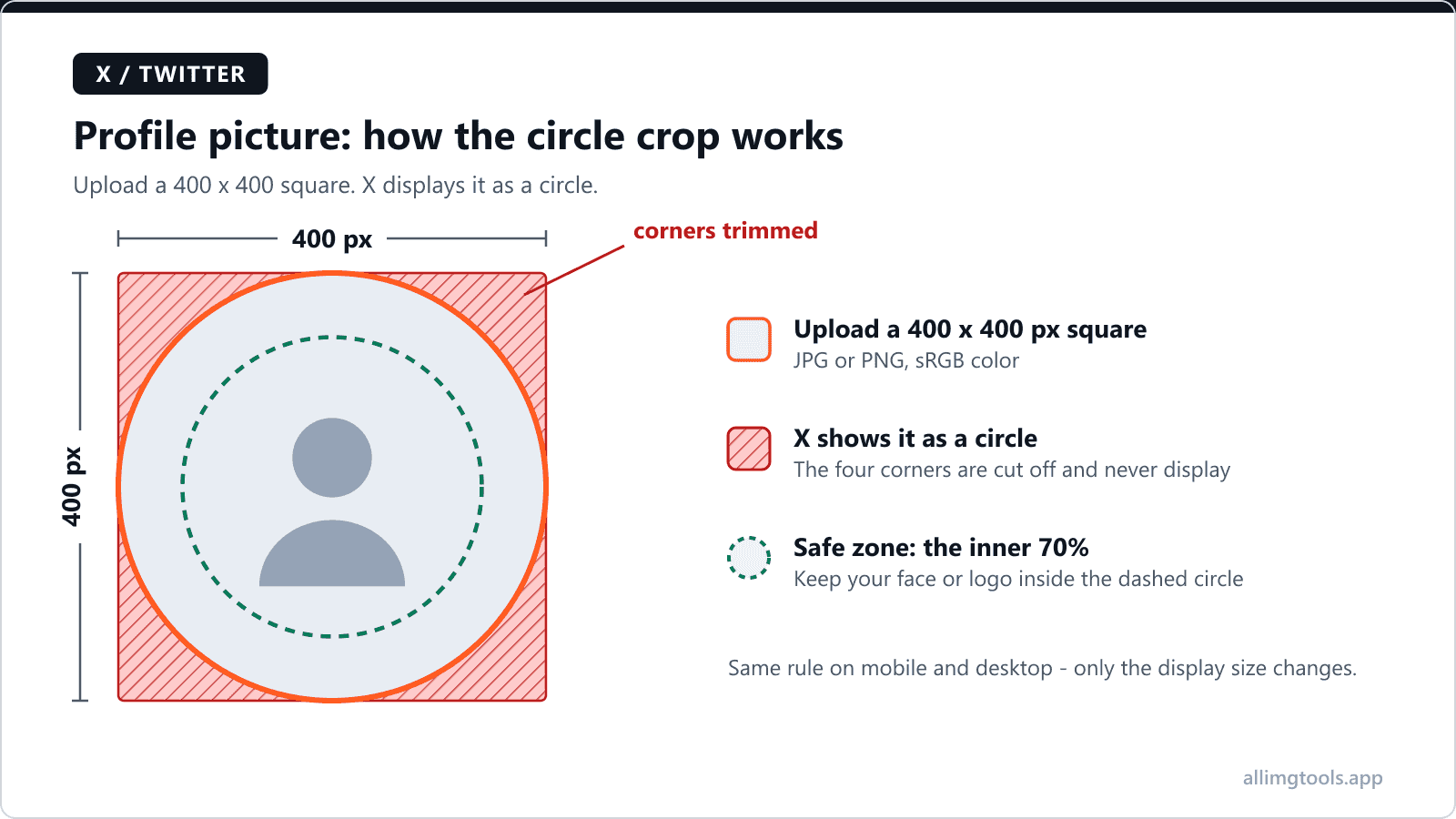
The safe zone is the inscribed circle of your 400 × 400 square. Anything inside that circle stays visible. Anything in the four triangular corner regions gets hidden. Practical rule: pad your design with at least 10-15% empty space on all sides if anything important is near the edges. Centered text, centered logos, centered faces all work fine. Off-center compositions and elements that hit the edges of the square get clipped.
A quick way to test: open your design in any image editor, draw a circle that touches the four edges of the canvas, and check that everything you want visible sits inside that circle. To see the live result before uploading, the circle crop tool (pick X from the dropdown) shows the exact 400 × 400 crop plus live thumbnails at the 24 × 24 notification and 48 × 48 timeline sizes X actually displays.
Pre-set to X's recommended dimensions with safe-zone preview. Crop with live preview so you see exactly what fits inside the circle.
Header banner: the profile picture overlap zone
X displays the header banner at 1500 × 500 pixels, but the profile picture overlaps the bottom-left corner of the header on desktop and the bottom-center on mobile. If you put important content there, the avatar covers it.
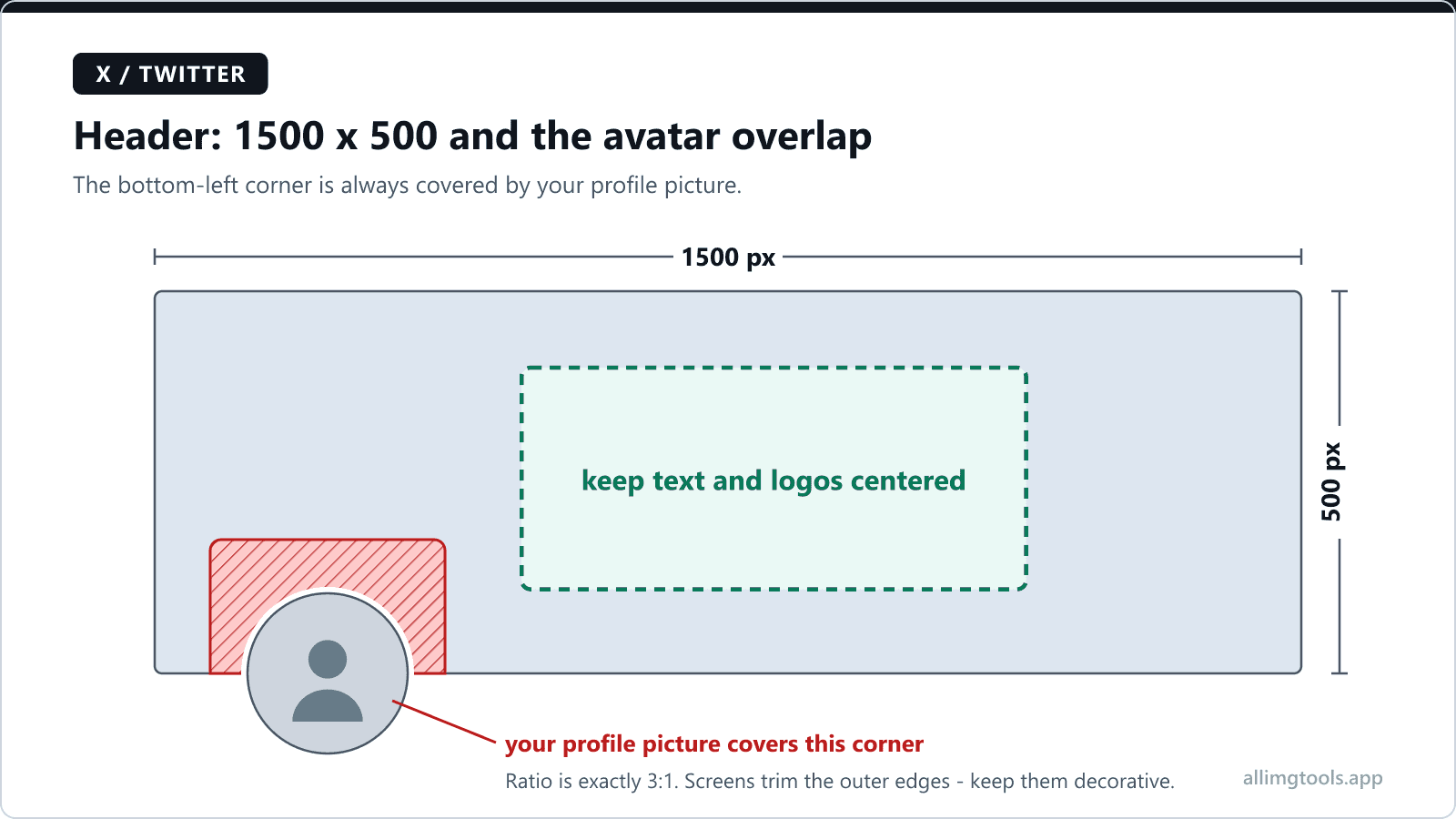
Safe content placement for the header:
- Keep important text or logos in the top 75% of the header (above the bottom 125 pixels of a 500-pixel-tall image)
- Keep important content in the middle horizontal band, centered (the left ~200 pixels can be covered by the avatar on desktop, the right edge can be cropped on mobile)
- Use the bottom 25% of the header for decorative elements only, since either the avatar or device-specific cropping affects this band
- Test by overlaying a 200-pixel-wide circle on the bottom-left of your design (mimicking the avatar position) and checking what's blocked
X also crops the header differently on mobile vs desktop. On desktop, the full 1500 × 500 is visible. On mobile, X often crops the left and right edges to fit a narrower aspect ratio (closer to 2.5:1). Keep edge-of-frame content non-critical.
Behind the scenes: how X processes your upload
Every image you upload goes through X's image pipeline before being served to other users. Knowing what X does helps you understand why your upload sometimes looks worse than the original you sent in.
Avatars are re-encoded as JPEG at about 80-85% quality
X converts profile pictures to JPEG and re-encodes at approximately 80-85% quality, served in WebP for browsers that support it. This is roughly equivalent to a 30-50% file size reduction from a high-quality source. Practical consequence: upload at the highest quality you have, because X's re-encoding has more to work with and produces a sharper result.
Multiple resampled sizes are generated
When you upload at 400 × 400, X generates several resampled versions for different display contexts. A small thumbnail (roughly 24-32 px) appears next to notifications and search results. A timeline-size version (around 48 px) appears next to posts in your feed. A medium version (around 112-200 px) appears on profile pages depending on platform. The full 400 px version appears when someone clicks to expand your profile. Uploading at 400 × 400 minimum ensures every resampled version is sharp at its native display size.
So even if your avatar only ever appears at 48 × 48 in someone's timeline, uploading at the full 400 × 400 still matters. The 48 × 48 thumbnail is generated by downscaling your high-resolution source, and downscaling produces a sharper result than upscaling. If you upload a 100 × 100 image, X has to upscale it to 200 × 200 for the profile page display, and upscaling introduces blur. Always upload at 400 × 400 or larger, even though most viewers will see a smaller version.
Headers are cropped, not letterboxed
If you upload a header at a different aspect ratio than 3:1, X crops from the center rather than letterboxing. A 16:9 image becomes a 3:1 image by removing equal slices from the top and bottom. A 1:1 square gets the top and bottom 30% removed. Always export at exactly 1500 × 500 or any 3:1 ratio (e.g., 1800 × 600, 3000 × 1000) to control what stays in frame.
Mobile vs desktop: how X displays your assets differently
The same upload renders at different sizes on X's mobile apps vs the desktop client. The differences are small but matter for design-sensitive assets.
| Asset | Desktop display | iOS app display | Android app display |
|---|---|---|---|
| Avatar in timeline post | 48 × 48 px | 44 × 44 px | 40 × 40 px |
| Avatar on profile page | 200 × 200 px | 112 × 112 px | 112 × 112 px |
| Header on profile page | Full 1500 × 500 | Center crop 2.5:1 | Center crop 2.5:1 |
| In-post landscape image | Up to 1200 × 675 px | Full width, max 1200 wide | Full width, max 1200 wide |
| In-post square image | Up to 720 × 720 px | Full width | Full width |
| Search result avatar | 32 × 32 px | 32 × 32 px | 32 × 32 px |
| Notification avatar | 24 × 24 px | 24 × 24 px | 24 × 24 px |
The smallest size your avatar will appear at is around 24 × 24 pixels (notifications) or 32 × 32 pixels (search results). Design at high resolution, but check that the result is still readable when shrunk to a thumbnail. Logos with thin lines, faces with detailed expressions, and small text all lose readability at that size. Bold, simple, high-contrast designs work best. If you're managing avatars across multiple platforms, the Discord image size guide covers similar design principles for Discord (circular crop, multiple resampled sizes, file size caps).
Animated profile pictures with X Premium
Free X accounts can only set a static profile picture. X Premium subscribers can upload animated GIFs as their avatar. The rules for animated profile pictures in 2026:
- Format: GIF only (no MP4, no WebM, no APNG)
- Dimensions: 400 × 400 pixels recommended (same as static)
- File size: up to 5 MB
- Duration: no strict limit, but most animated PFPs loop in 2-4 seconds
- The animation plays on profile pages on desktop and mobile
- On timeline thumbnails (48 × 48), only the first frame is shown as a static image
- Removing X Premium subscription reverts the avatar to the first frame of the GIF as a static image
If you have a high-resolution video clip and want to use it as an animated profile picture, convert to GIF first, then crop to a 400 × 400 square centered on the action. Keep the looping smooth by making the first and last frames similar.
When uploads fail: what to check first
X says my image is too large
The most common cause is exceeding the file size cap: 2 MB for static avatar, 5 MB for header and post images, 15 MB for animated GIFs. Compress your image to a smaller file size before uploading. Two other causes to check if compression doesn't fix it: your image dimensions might exceed the maximum (anything wider than 4096 pixels gets rejected, so resize to under 4096 wide), or your filename has special characters that confuse X's upload parser, in which case renaming to ASCII letters and numbers fixes it.
My iPhone HEIC photo won't upload
X accepts JPEG and PNG for profile pictures, not HEIC. If you took a photo on an iPhone since iOS 11, it saved as HEIC by default. Convert it to JPG first using a HEIC to JPG converter. X also accepts HEIC in some upload paths (in-post images, sometimes) but the support is inconsistent. Convert to JPG to be safe.
My profile picture looks blurry after upload
Usually one of two things. The image you uploaded was smaller than 400 × 400, so X had to upscale it to fit the profile display, and upscaling introduces blur. Re-upload at exactly 400 × 400 pixels or larger. The other common cause is uploading a JPEG that was already heavily compressed (downloaded from social media, saved at low quality, etc.). X re-compresses on top of that, and the stacked quality loss is visible. Start with a high-quality source (PNG or JPEG at 90%+ quality) so X's re-encoding has more to work with.
My header looks cropped or stretched
Your header was not at 3:1 ratio when you uploaded. X cropped from the center to fit. Re-export at exactly 1500 × 500 pixels (or any 3:1 ratio: 1800 × 600, 2400 × 800, etc.) with all your important content in the middle horizontal band.
Animation in my GIF avatar isn't moving
The most likely cause: you don't have an active X Premium subscription. Animated profile pictures require Premium, and without it X only shows the first frame as a static image. If you have Premium and it still isn't animating, check that the file is actually a GIF (not an MP4 with .gif extension renamed) by opening it in a browser to verify it animates. Files over the 5 MB limit also fall back to static display, so compress the GIF below 5 MB if needed.
My in-post image shows different on mobile vs desktop
Single in-post images are letterboxed differently across devices. Desktop shows the full image up to about 1200 wide with letterbox. Mobile fills the column width. For consistent appearance, design at 16:9 (1600 × 900) for landscape posts and 1:1 (1080 × 1080) for square posts. Avoid 4:5 (1080 × 1350) because mobile sometimes crops the top and bottom to 1:1.
Pre-set to about 1-2 MB output so X (and Discord, Instagram) don't apply their aggressive re-compression.
The pre-upload checklist for every X asset
- Match the exact recommended dimensions from the cheat sheet above. X scales anything off-spec.
- Use the right format. JPG for photographs, PNG for graphics with sharp edges or transparency, GIF for animation only.
- Hit the file size cap. 2 MB for static avatar, 5 MB for header and posts, 15 MB for animated GIFs.
- For the circular avatar, keep important content within the inscribed circle (centered, 10-15% padding from edges).
- For the header, keep important content above the bottom 25% (profile pic overlap zone) and in the central horizontal band (edge crop on mobile).
- Test at small size. Shrink your design to 48 × 48 px and check it's still recognizable.
- Convert to sRGB color space if exporting from Photoshop with wide-gamut profile. X re-converts non-sRGB and the conversion is lossy.
- Add alt text on in-post images for accessibility (X has a dedicated alt text field, up to 1,000 characters).
Alt text and accessibility on X
X has supported alt text on uploaded images for years, but adoption is still low. When you upload an image, an Add description button appears next to the image preview. Click it and write a short text description of what the image shows. Screen readers read this text to blind and low-vision users.
Best practice for alt text on X: 1-2 sentences describing the visual content. Include any text shown in the image. Skip phrases like 'image of' or 'photo of' (the screen reader announces it as an image already). Limit to under 200 characters when possible, X allows up to 1,000 but shorter is more useful.
Beyond accessibility, alt text helps your post in two practical ways. Search engines and X's own search use the text to understand what the image is about. And alt text shows in the post preview when the image fails to load (slow connections, broken CDN, hover preview).
Pulling it together
Most X profile picture problems come from three causes. First, not matching the 400 × 400 dimensions and letting X scale (the result is a blurry, soft avatar). Second, not respecting the circle crop and letting important content hit the edges of the square (the result is your logo's edges cut off). Third, not realizing the file size caps and getting the upload rejected.
Get the right dimensions, design for the circle, hit the file size limit, and use sRGB color. The cheat sheet table above covers everything you need. If you're also setting up Discord, the Discord image size guide walks through avatars, banners, server icons, and emoji at the same depth.
The short version
Upload your X profile picture at exactly 400 x 400 pixels as an sRGB JPG or PNG, and design for the circle crop: keep your face or logo centered with breathing room, because the corners of the square get shaved off. The header is a separate 1500 x 500 image. The X profile picture resizer squares your photo to 400 x 400 in one step.
Frequently Asked Questions
Tools mentioned in this article
Related articles
Facebook Cover Photo Size 2026: 820x312, 1640x624 & Safe Zone
Desktop shows 820 x 312, mobile crops it to 640 x 360 with the edges cut off. The exact safe zone, the profile-picture overlap, every cover size on Facebook, and why your design looks broken on phones.
Discord Image Sizes 2026: Avatar, Banner, Server Icon, Emoji
Exact pixel sizes, file size limits, and the Free vs Nitro differences for every Discord image type. Plus what Discord does to your uploads, and why your avatar looks blurry.
Why Are My Instagram Photos Blurry After Upload? (5 Real Reasons + Fixes)
Instagram compresses every photo on upload. Here are the 5 specific reasons your photos look blurry, and the exact dimensions, file size, and format that survive Instagram's compression intact.