Discord Image Sizes 2026: Avatar, Banner, Server Icon, Emoji
The exact dimensions are easy. The trap is the file size limits, the Free vs Nitro differences, and what Discord does to your image after you upload. This guide covers all three.
You design a server icon, upload it, and it looks soft. You upload a banner, and the top half of your artwork is cropped off. You try to add a 1 MB animated emoji and Discord rejects it. Three different problems, three different size limits you did not know existed.
Discord has more than a dozen distinct image asset types if you count webhook avatars, bot icons, and Activity backgrounds. Each has its own dimensions, file size cap, format requirements, and access tier (free, Nitro, or boosted server). This guide covers all of them, plus what Discord does to your uploads on the server side, which most other guides skip.
The complete 2026 Discord size cheat sheet
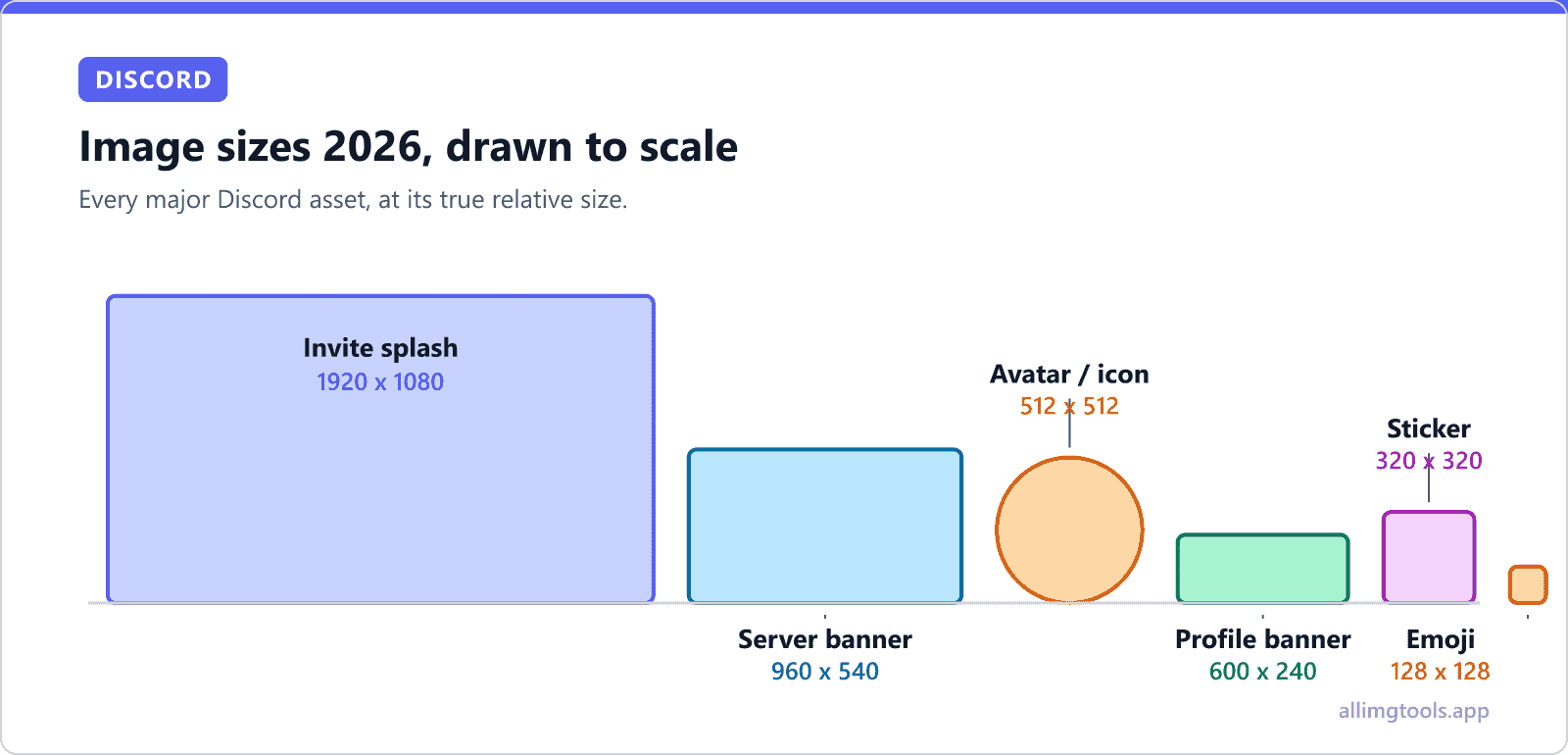
Here is every Discord image asset, the recommended size, the maximum file size, the supported formats, and what tier you need.
| Asset | Recommended size | Max file size | Formats | Required tier |
|---|---|---|---|---|
| User Avatar (profile picture) | 512 × 512 px (1:1) | 10 MB | PNG, JPG, GIF* | Free |
| Server Icon | 512 × 512 px (1:1) | 10 MB | PNG, JPG, GIF* | Free |
| Profile Banner (personal) | 600 × 240 px (5:2) | 10 MB | PNG, JPG, GIF* | Nitro |
| Server Banner | 960 × 540 px (16:9) | 10 MB | PNG, JPG | Boost Level 2 |
| Server Invite Splash | 1920 × 1080 px (16:9) | 10 MB | PNG, JPG | Boost Level 1 |
| Server Discovery Splash | 1920 × 1080 px (16:9) | 10 MB | PNG, JPG | Discovery eligible |
| Custom Emoji (static) | 128 × 128 px (1:1) | 256 KB | PNG, JPG | Free (limits vary) |
| Custom Emoji (animated) | 128 × 128 px (1:1) | 256 KB | GIF | Nitro |
| Sticker (custom) | 320 × 320 px (1:1) | 500 KB | PNG, APNG, Lottie | Boost Level 1 |
| Role Icon | 64 × 64 px (1:1) | 256 KB | PNG, JPG | Boost Level 2 |
| Channel Icon (forum) | 64 × 64 px (1:1) | 256 KB | PNG, JPG | Free |
| App Cover / Splash | 1024 × 1024 px (1:1) | 10 MB | PNG, JPG | App developer |
Animated avatars (GIF profile pictures) require Nitro. If you upload a GIF avatar without Nitro, Discord uses the first frame as a static avatar. The same rule applies to animated server icons (which need at least one server boost) and animated emoji (Nitro for users to USE them, but most servers allow uploading the slot).
The trap nobody warns you about: circular cropping
Both your profile avatar and your server icon are cropped to a circle when displayed. You upload a square, Discord crops it to a circle. This means anything in the four corners of your image gets cut off.
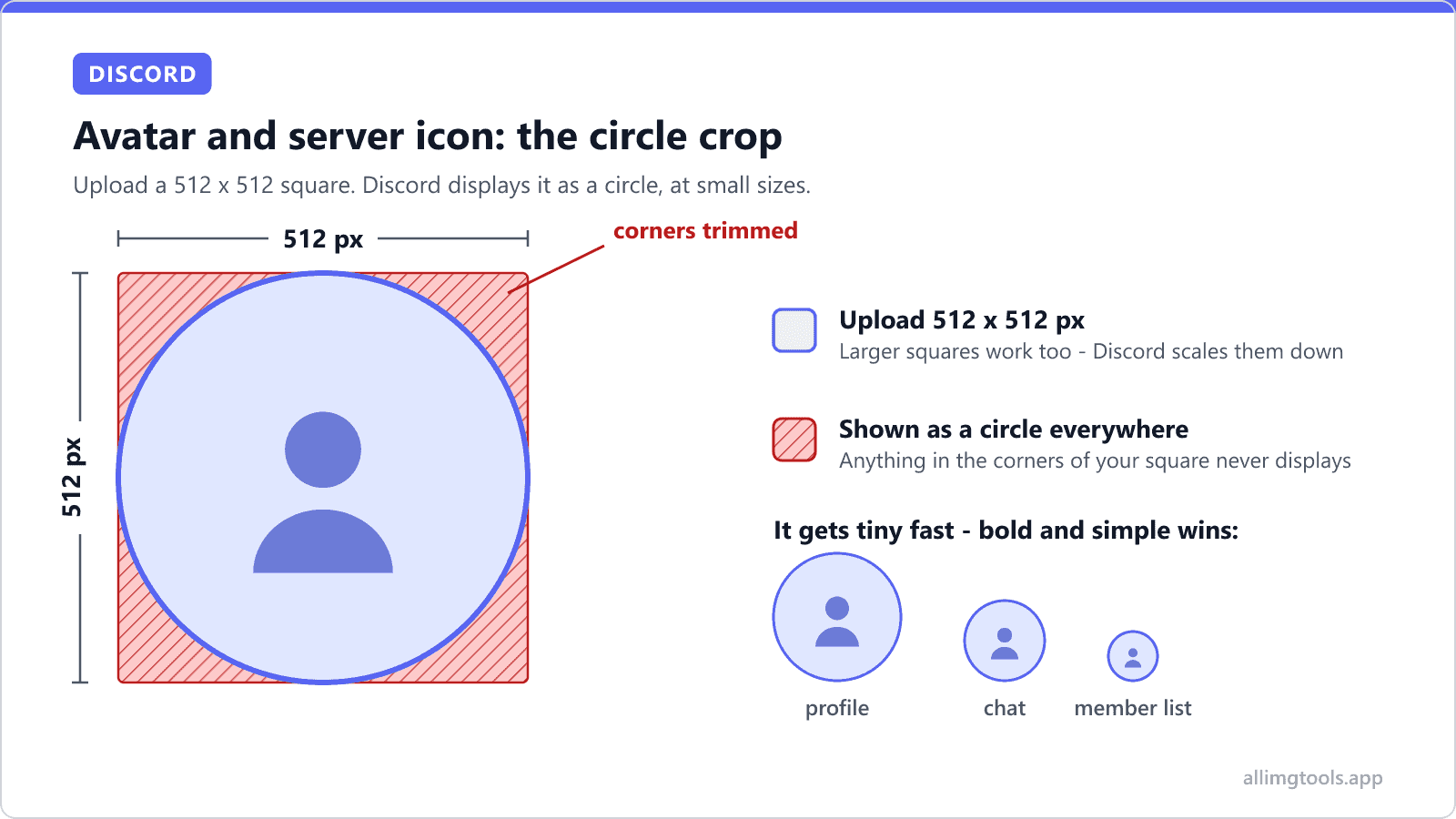
The safe zone is the inscribed circle of your square. Practical rule: pad your design with at least 10-12% empty space on all sides if anything important is near the edges. Centered text, centered logos, centered faces all work fine. Off-center compositions and elements that hit the edges of the square get clipped.
A quick way to test: open your design in any image editor, draw a circle that touches the four edges of the canvas, and check that everything you want visible sits inside that circle. If you want to preview the result before uploading, pre-crop your avatar to a circle for Discord shows the exact 512 × 512 crop plus live thumbnails at the member list (32 px) and chat (40 px) sizes Discord actually displays.
Pre-set to Discord's preferred avatar and icon size. Crop with live preview so you see exactly what fits inside the circle.
Free vs Nitro vs Nitro Basic: what you actually get
Discord's tier rules are confusing because the marketing pages use the same names for different things across the years. Here is what each tier actually unlocks for image features in 2026.
| Feature | Free | Nitro Basic | Nitro |
|---|---|---|---|
| Upload static avatar | Yes (10 MB) | Yes (10 MB) | Yes (10 MB) |
| Animated avatar (GIF) | No (first frame only) | Yes | Yes |
| Profile banner | No | Yes | Yes |
| Animated profile banner | No | No | Yes |
| File upload limit per message | 10 MB | 50 MB | 500 MB |
| Use animated emoji from any server | No | Yes | Yes |
| Use custom emoji across servers | No | Yes | Yes |
| Server boost | No | 1 included | 2 included |
The big practical difference for image uploads: the per-message file size limit. Free accounts cap at 10 MB per file. If you try to attach a 15 MB photo to a message, Discord rejects it. Nitro Basic raises this to 50 MB, full Nitro to 500 MB. For the asset uploads (avatar, server icon, banner), the 10 MB cap applies regardless of tier.
If you read older Discord guides claiming the free upload limit is 8 MB, that was the limit until early 2024. Discord raised the free tier cap to 25 MB briefly, then settled on 10 MB in 2025. Most outdated guides still cite 8 MB, which is why you sometimes see file size advice that does not match reality.
Webhook avatars, bot icons, and the assets nobody covers
If you run a server with webhooks (for GitHub commits, RSS feeds, alert pipelines) or you build a Discord bot, you have additional image assets to set. Most other size guides skip these because they assume a casual user, but for server operators they matter.
| Asset | Recommended size | Max file size | Where to set |
|---|---|---|---|
| Webhook avatar | 256 × 256 px (1:1) | 10 MB | Channel settings > Integrations > Webhooks |
| Bot avatar | 256 × 256 px (1:1) | 10 MB | Discord Developer Portal > Application > Bot |
| Application icon (for Activities) | 1024 × 1024 px (1:1) | 10 MB | Developer Portal > General Info |
| Application cover image | 1920 × 1080 px (16:9) | 10 MB | Developer Portal > General Info |
| Application splash (in profile) | 300 × 200 px (3:2) | 10 MB | Developer Portal > Rich Presence |
| Linked Roles icon | 64 × 64 px (1:1) | 256 KB | Server Settings > Roles > Link |
| Soundboard icon | Auto-generated | Audio: 512 KB | Server Settings > Soundboard |
| Server Subscription tier icon | 200 × 200 px (1:1) | 256 KB | Server Settings > Server Subscriptions |
Webhook avatars are particularly worth getting right. A well-designed webhook avatar (your CI logo, alerting tool icon, etc.) makes notifications instantly recognizable in a busy channel. Default webhook avatars are bland gray squares that everyone ignores, and the upload takes 10 seconds.
How to upload Discord images on desktop vs mobile
The upload UI differs noticeably between Discord's desktop and mobile clients, which trips up first-time users. Here are the exact steps for the most common assets.
Profile avatar (desktop)
- Click the gear icon next to your username at the bottom-left of the window.
- User Settings opens with My Account at the top.
- Hover your current avatar and click the pencil edit icon (or click Change Avatar).
- Pick your file. Discord shows a crop preview with a circle overlay so you see what will be visible.
- Drag the image to reposition, scroll to zoom, click Apply.
- Click Save Changes at the bottom of the page.
Profile avatar (mobile)
- Tap your avatar at the bottom-right of the app.
- Tap Edit Profile near the top.
- Tap your current avatar.
- Choose either Camera or Gallery (Photos on iOS).
- Crop with the on-screen circle, pinch to zoom, drag to reposition.
- Tap the checkmark or Apply, then Save.
Server icon and banner
- Open the server, click the server name at the top to open the dropdown.
- Choose Server Settings.
- On the Overview tab, you see Upload Image for the icon and (if your server qualifies) Upload Banner Background.
- Pick your file. For the icon, Discord shows the circle crop preview.
- For the banner, upload 960 × 540 (16:9) and keep important content in the middle band - the mobile view crops the top and bottom.
- Click Save Changes.
Animated emoji and avatars: the rules people get wrong
Animated emoji must be GIF, exactly 128 × 128 px, and under 256 KB. The frame rate is capped (Discord drops frames if your GIF runs faster than ~30 fps). Total animation length should be under 5 seconds for smooth playback in chat; longer animations technically work but the file size quickly exceeds 256 KB.
For animated profile avatars, GIFs are the only supported format. APNG and WebP animations are not accepted as avatars in 2026. The 10 MB cap applies to avatar uploads, so the GIF needs to be under that. Most well-compressed animated avatars come in at 1-4 MB.
If your animated GIF emoji or avatar is over 256 KB, the upload fails silently with a generic error. Discord does not tell you the file size is the problem. The fix is to compress the GIF below 256 KB, which usually means dropping the dimensions, reducing colors, or trimming frames.
Get under the 256 KB emoji limit. Browser-side compression with no upload to any server.
What Discord actually does to your images
Every image you upload to Discord goes through their CDN, which converts and re-serves your file. Knowing what Discord does helps you understand why your upload sometimes looks worse than the original.
All images served as WebP on modern browsers
Discord converts uploaded PNG, JPG, and (where possible) GIF images to WebP when serving them to clients that support WebP. WebP is roughly 25-35% smaller than the original JPG at equivalent quality. We wrote a full breakdown of how AVIF, WebP, and JPG compare in 2026 if you want to understand why Discord and most other platforms moved to WebP. The conversion happens server-side and you do not see the WebP file directly, but the bandwidth savings are why Discord can serve billions of images cheaply.
Avatars and icons are resampled to multiple sizes
When you upload a 512 × 512 avatar, Discord generates resampled versions at 16, 32, 64, 128, 256, and 512 pixels for different display contexts. The 32 px version is what shows in chat messages. The 256 px version shows in the profile popout. The 512 px version is mostly used for the high-resolution profile page on desktop.
This is why uploading at 512 × 512 minimum matters. If you upload a 64 × 64 image (the bare minimum Discord accepts), it gets upscaled to 512 px for the profile page and looks blurry. Always upload at 512 × 512 even if the icon mostly appears small.
Server banners get cropped, not letterboxed
Server banners are 960 × 540 (16:9) at upload, but the display crops rather than letterboxes: mobile shows a wider, shorter slice (roughly 540 × 240), removing significant top and bottom areas. If you upload a square or near-square image, even more gets cut. Make sure your important content is in the middle horizontal band.
Mobile vs desktop: the differences nobody mentions
The same image renders slightly differently on Discord's mobile apps vs the desktop client. The differences are small but matter for design-sensitive assets.
| Asset | Desktop display size | Mobile display size | Notes |
|---|---|---|---|
| Avatar in chat message | 40 × 40 px | 32 × 32 px | Same source, different render size |
| Avatar in member list | 32 × 32 px | Hidden by default | Mobile shows it only in profile view |
| Server icon (sidebar) | 48 × 48 px | 44 × 44 px | Very close, both circular |
| Profile banner | Full 600 × 240 visible | Cropped to ~5:2 | Mobile may further crop on small screens |
| Server banner | Full width of channel list | Header strip above channel name | Mobile shrinks to ~1.5x channel width |
| Custom emoji in message | 22 × 22 px | 22 × 22 px | Same |
| Custom emoji in picker | 32 × 32 px | 40 × 40 px | Mobile larger for touch |
The takeaway: design for the smallest display size, not the largest. Your 512 × 512 avatar will mostly be seen at 32 × 40 pixels. Any text smaller than 60 px tall in the source becomes unreadable. Logos with thin lines lose detail. Faces with detailed expressions become blobs. Bold, simple, centered designs win.
The pre-upload checklist for every Discord asset
- Match the exact recommended dimensions from the table above. Discord scales anything off-spec.
- Use the right format. PNG for crispness and transparency, JPG for photos, GIF for animation only.
- Hit the file size cap. 10 MB for avatars and banners, 256 KB for emoji, 500 KB for stickers.
- For circular assets (avatar, server icon), keep important content within the inscribed circle.
- For server banners, keep important content in the middle horizontal band.
- Test at small size. Shrink your design to 40 × 40 px and check it is still readable.
- Convert to sRGB color space if you exported from Photoshop with a wide-gamut profile. Discord re-converts non-sRGB and the conversion is lossy.
- Upload the highest-quality version you can within the limit. Discord re-compresses, so giving it good source material matters.
Common problems and how to fix them
My avatar looks blurry on the profile page
Caused by uploading a small image (under 256 px) that Discord then upscales for the larger profile display. Re-upload at exactly 512 × 512 px using the Discord avatar resize preset. If the source is small, regenerate it at a larger size from your original file rather than scaling up a small JPG (which makes it blurrier).
My server banner is cropped wrong
The upload size is 960 × 540 (16:9), but Discord's displays crop it - mobile shows a wider, shorter center slice. Re-export at exactly 960 × 540 with all important content in the middle horizontal band, and treat the top and bottom ~150 px as croppable decoration.
My animated emoji upload fails with no error
Almost always the 256 KB limit. Discord rejects the upload silently if the GIF is too large. Compress the GIF, reduce dimensions to exactly 128 × 128, or drop frames to shrink the file. Most large animated emojis are oversized because they were exported at 256 × 256 by mistake.
My GIF avatar shows as a static image
Animated avatars require Nitro. Without Nitro, Discord accepts the GIF but only shows the first frame as a static image. There is no fix beyond subscribing to Nitro or using a static avatar instead.
Colors look different after upload
Caused by uploading a file with a non-sRGB color profile (Display P3, Adobe RGB, ProPhoto RGB). Discord converts everything to sRGB on the server. The conversion shifts saturated colors slightly. iPhone photos are the most common source of this problem since iOS captures in Display P3 by default. Export your file in sRGB from your editor first, or convert an iPhone HEIC photo to JPG which strips the wide-gamut profile in the process.
I can't upload to my server, it says the file is too big
Different from the asset upload limits. For files attached to chat messages, free accounts cap at 10 MB. Nitro Basic raises this to 50 MB, full Nitro to 500 MB. If you are uploading a screenshot or photo to share in a channel and it is over 10 MB, compress it for Discord first.
Target under 10 MB so any account can upload it. Or use the 8 MB safety preset to leave room for some servers' tighter limits.
Best formats for each asset type
Discord supports several image formats but each asset type has a clear best choice.
| Asset type | Best format | Why |
|---|---|---|
| Avatar (static) | PNG | Transparency support, sharp edges for logos |
| Avatar (animated) | GIF | Only animated format Discord accepts for avatars |
| Server icon (static) | PNG | Same as avatar, often a logo |
| Server icon (animated) | GIF | Requires Boost Level 1+ on the server |
| Profile banner | JPG (photo) or PNG (graphic) | JPG smaller for photos, PNG sharper for designs |
| Server banner | JPG | Photo content compresses well at 1920×480 |
| Custom emoji (static) | PNG | Crisp at 128 px, transparency for floating effects |
| Custom emoji (animated) | GIF | Only accepted format for animation |
| Sticker | APNG | Better quality than GIF for animation; PNG for static |
Quick answers for common scenarios
| I want to... | Use this size | And this preset |
|---|---|---|
| Set my profile picture | 512 × 512 px, PNG | Use the Discord avatar resize preset |
| Set my server's icon | 512 × 512 px, PNG | Same as avatar |
| Set my profile banner (Nitro) | 600 × 240 px, JPG or PNG | Pre-cropped to 5:2 ratio |
| Set my server banner (Boost Level 2) | 960 × 540 px, JPG | 16:9 - mobile crops top and bottom |
| Upload a static emoji | 128 × 128 px, PNG, under 256 KB | Resize and compress separately |
| Upload an animated emoji | 128 × 128 px, GIF, under 256 KB | Compress GIF first |
| Share a screenshot in chat (Free) | Under 10 MB | Use Compress for Discord preset |
| Share a screenshot in chat (Nitro) | Under 50 MB | Usually no compression needed |
Bottom line
Most Discord image problems come from three causes. First, uploading at the wrong dimensions and letting Discord crop or scale (the result is a blurry, cropped mess). Second, not realizing the per-asset file size caps exist (256 KB for emoji, 10 MB for avatars). Third, expecting features that require Nitro or Boost levels to work on a free account.
Get the right dimensions, hit the right file size, and choose the right format for the asset. The cheat sheet table covers everything you need in one place. Bookmark it for whenever you set up a new server or update your profile.
Frequently Asked Questions
Tools mentioned in this article
Resize for Discord
Pre-set to 512 × 512 for avatars and server icons
Compress for Discord
Hit Discord's file size limits without losing quality
Compress GIF
Get animated emojis under the 256 KB cap
Crop Image
Crop to 16:9 for server banners or 5:2 for profile banners
Convert PNG to JPG
Convert before uploading photo banners
Related articles
Discord Sticker Size 2026: 320 x 320, 500 KB, and the Rules That Trip People Up
Discord stickers must be exactly 320 x 320 pixels, under 500 KB, in PNG or APNG. Server boost unlocks 15-60 slots. The exact requirements, animated APNG how-to, and the upload errors most people hit.
Discord Banner Size 2026: Server 960 x 540, Profile 600 x 240, Splash 1920 x 1080
Discord has three different banner sizes for three different contexts. Server banner (960 x 540), Profile banner (600 x 240), Invite Splash (1920 x 1080). Boost levels, Nitro tiers, mobile crop, and animated GIF rules.
Facebook Cover Photo Size 2026: 820x312, 1640x624 & Safe Zone
Desktop shows 820 x 312, mobile crops it to 640 x 360 with the edges cut off. The exact safe zone, the profile-picture overlap, every cover size on Facebook, and why your design looks broken on phones.
X (Twitter) Profile Picture Size 2026: Dimensions, Display, Circle Crop
Exact pixel sizes for X profile, header, posts, and Premium animated avatars. Plus what X does to your upload, mobile vs desktop display, and the file size errors that block uploads.
Why Are My Instagram Photos Blurry After Upload? (5 Real Reasons + Fixes)
Instagram compresses every photo on upload. Here are the 5 specific reasons your photos look blurry, and the exact dimensions, file size, and format that survive Instagram's compression intact.
How to Combine Multiple Images into One PDF: 4 Methods Compared
Four ways to merge images into a PDF. Output sizes vary by up to 5x. Some methods upload your files, others don't. Honest comparison nobody else publishes.