Discord Sticker Size 2026: 320 x 320, 500 KB, and the Rules That Trip People Up
Discord stickers have one exact size (320 x 320), one tight file limit (500 KB), and a specific format requirement (PNG or APNG, not GIF or JPG). Server boost level controls how many you can upload. This is the practical guide.
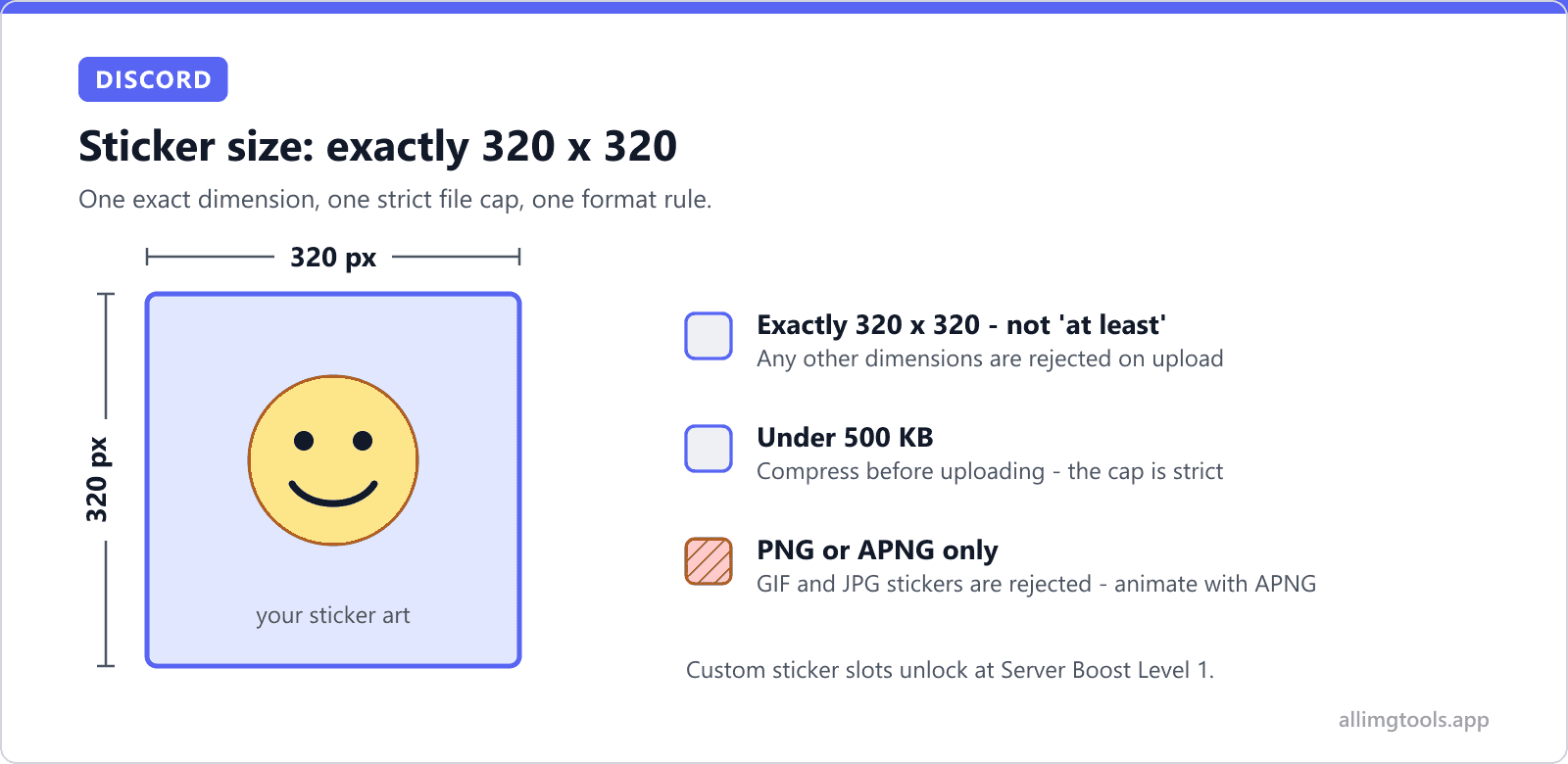
Discord stickers have zero flexibility on size. Exactly 320 × 320 pixels, 500 KB maximum file size, PNG or APNG format (Lottie .json on higher boost tiers). The platform does not auto-resize stickers the way it does avatars and emojis. Upload at 256 × 256 and you get rejected. Upload at 512 × 512 and you get rejected. The error message Discord shows is unhelpful: a generic 'Could not upload sticker' with no hint about which constraint your file failed.
Discord stickers are not flexible. They have one exact dimension (320 x 320 pixels), one tight file size cap (500 KB), and a specific list of accepted formats (PNG, APNG, Lottie). Files outside those constraints get rejected outright with no resize-and-fix path. This guide covers every rule, why they exist, the format choice for animated vs static, and the boost-level requirements for upload.
Why 320 x 320 specifically
Discord renders stickers at two main display sizes: about 160 x 160 pixels in the chat (when a user sends one), and about 80 x 80 pixels in the sticker picker (the menu where you select which sticker to send). The 320 x 320 source is roughly 2x both display sizes, which is the standard resolution ratio for crisp rendering on Retina and high-DPI screens.
Why not 640 x 640 for even more sharpness? The 500 KB file size cap. A photographic 320 x 320 PNG fits comfortably under 500 KB. A 640 x 640 PNG with similar visual complexity would be 4x larger and bust the cap. Discord picked 320 x 320 as the sweet spot between display quality and storage budget.
Why exact rather than a range? Discord auto-resizes avatars and emojis when you upload at different sizes, but does not auto-resize stickers. This is the single most surprising thing about stickers: they require manual resize to exactly 320 x 320 before upload. The fastest way to do this without thinking is the Discord sticker resizer tool, which is pre-set to 320 x 320 and preserves transparency.
Pre-set to Discord's exact sticker dimensions. Preserves transparency, exports as PNG ready for upload.
Why your sticker upload keeps failing
Discord's sticker upload error is famously unhelpful. It says something generic like 'Could not upload sticker' or 'Invalid file' without explaining why. There are three common reasons in order of frequency:
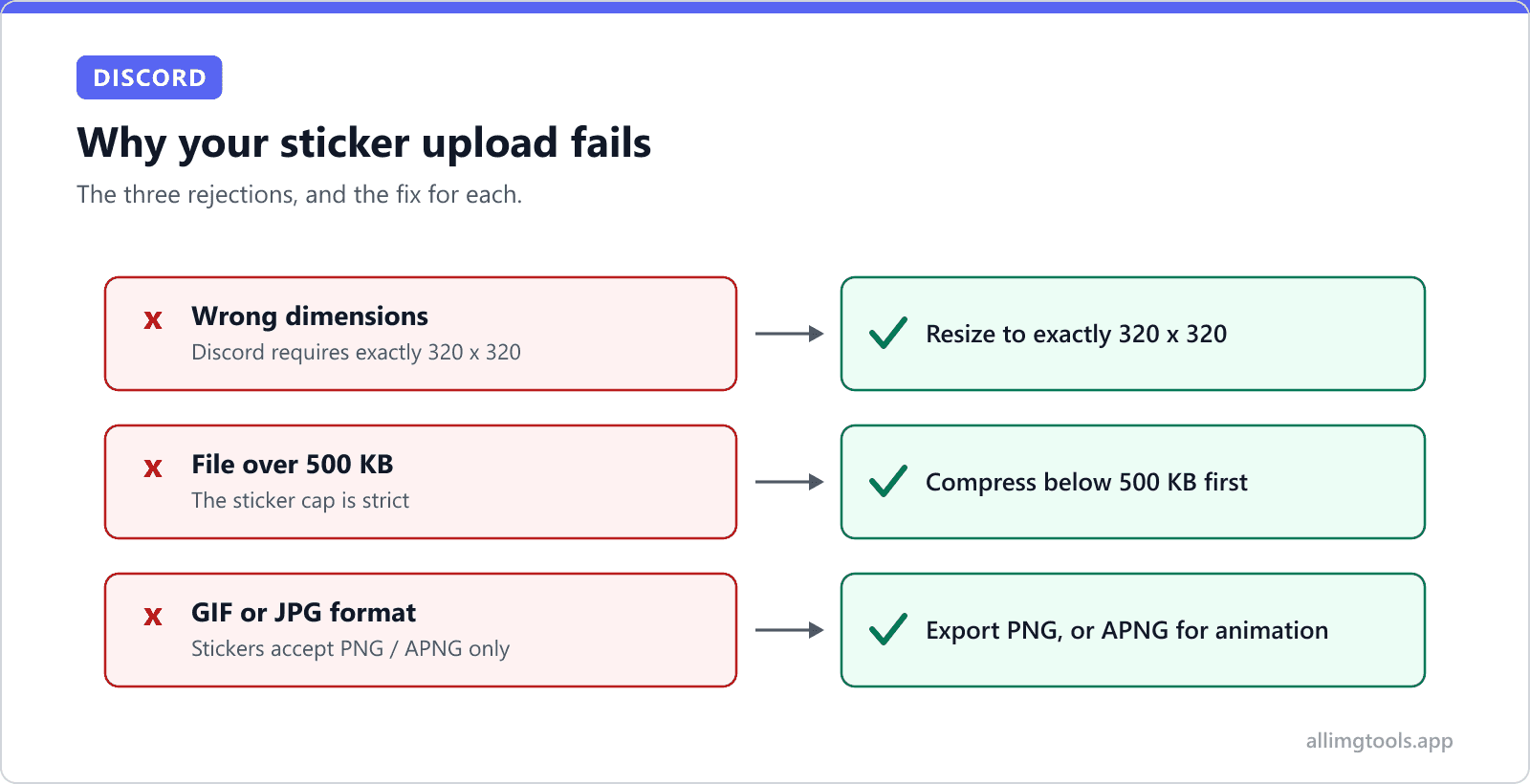
- Dimensions are not exactly 320 x 320. Discord rejects any other size with no resize prompt. This is the most common cause. Resize to 320 x 320 and retry.
- File size is over 500 KB. Especially common with APNG animations. Compress or reduce frame count.
- Format is JPG or GIF. JPG is rejected because stickers need lossless format for transparency. GIF is rejected because Discord wants APNG for animated stickers (better compression and color fidelity). Convert to PNG (static) or APNG (animated).
Less common but possible: corrupted PNG file (re-export from your editor), missing alpha channel on a sticker designed with transparency (export with alpha enabled), or file uses an unsupported PNG color mode (Discord accepts RGBA only, not indexed or grayscale).
Static stickers: PNG with transparency
Most Discord stickers are static PNG files. The workflow is simple:
- Design at 320 x 320 from the start (not 1024 x 1024 with a later downscale, which often loses fine detail).
- Use a transparent background. Discord chat has a dark background (or sometimes light, depending on user theme), and stickers without transparency look like they have a white box around them.
- Export as PNG with alpha channel (RGBA mode).
- Check the file size. Static PNGs at 320 x 320 usually weigh 30-150 KB, well under the 500 KB cap.
- Upload to Discord via Server Settings > Stickers > Upload Sticker.
If your source is larger than 320 x 320 (common when working from a master file at 1024 x 1024 or higher), use the Discord sticker resizer to downscale before exporting. Downscaling produces sharp results because the algorithm has more pixel data to work with.
Animated stickers: APNG, not GIF
Discord wants animated stickers as APNG (Animated PNG), not GIF. APNG offers better color depth (24-bit color with alpha, vs GIF's 256-color palette) and usually better compression for animation with subtle color changes. The trade-off is APNG support in design tools is less widespread than GIF.
Tools that export APNG natively include Photoshop (since 2014), Procreate (since 2021), Krita, and Aseprite. Web-based options include ezgif.com (converts GIF to APNG) and apngasm (command-line tool). If your existing animation is GIF, convert to APNG before uploading.
The 500 KB cap is the hardest constraint for animated stickers. A complex animation at 30 frames per second with full color depth can easily exceed 2 MB. Strategies to fit under 500 KB:
- Reduce frame count. Most stickers need 4-8 frames, not 30. A bouncing emoji can loop in 4 frames.
- Reduce frame rate. 10-15 fps is plenty for an emoji-style animation. 60 fps is overkill.
- Use limited color palettes where possible. If your sticker is a 2-color flat illustration, indexed color saves significant size.
- Crop transparent borders. If your animation only uses the center 200 x 200 region, the extra transparent border still adds compressed bytes.
- Use APNGasm or a similar optimizer to strip redundant frame deltas.
Lottie stickers (.json vector format) are also supported at Level 2 boost and above. Lottie files are much smaller than APNG for the same animation because they store vector instructions instead of pixel frames. The downside: Lottie requires specific export tools (After Effects with the Bodymovin plugin, or Rive). For most server admins, APNG is the simpler path.
Server boost requirements: how many stickers you can have
Sticker upload is gated behind server boosting. Boosts come from individual Nitro subscribers spending their boost slots on your server. Each Nitro user has 2 boost slots.
| Boost level | Boosts required | Sticker slots | Lottie support |
|---|---|---|---|
| None | 0 | 0 (cannot upload) | No |
| Level 1 | 2 boosts | 15 stickers | No |
| Level 2 | 7 boosts | 30 stickers | Yes |
| Level 3 | 14 boosts | 60 stickers | Yes |
Each sticker, static PNG or animated APNG, counts as one slot. Lottie also counts as one slot but is only available at Level 2 and higher. Once uploaded, the sticker can be used by any server member (Nitro or non-Nitro) within that specific server. Non-Nitro members cannot use that sticker in OTHER servers.
If you are launching a server that depends on custom stickers (themed communities, gaming servers, art servers), planning the boost goals is part of the launch. Reach out to your Nitro subscribers early.
Stickers vs Emojis vs Reactions: when to use each
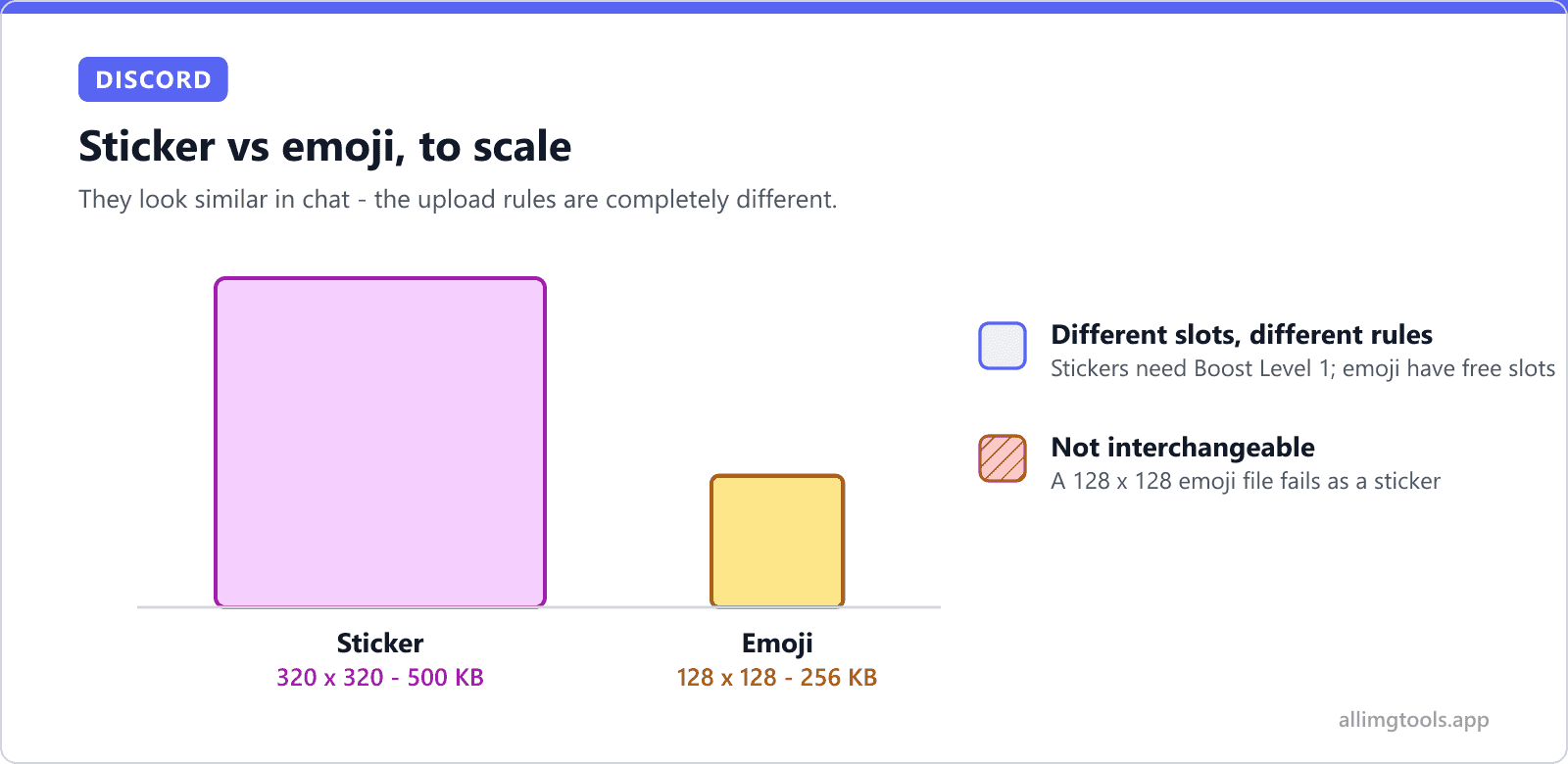
Discord has three overlapping image-as-message concepts. Knowing when each is the right choice saves you time and slot space.
| Type | Display size | Source size | File limit | Use case |
|---|---|---|---|---|
| Sticker | ~160 x 160 px (chat) | 320 x 320 px | 500 KB | Larger expression sent as its own message. |
| Emoji | ~32-48 px (inline) | 128 x 128 px | 256 KB | Inline with text. Used in messages and reactions. |
| Reaction | Same as emoji | Same as emoji | Same as emoji | Mechanically the same as emoji, used as a reaction below a message. |
Decision rule: if the image is meant to BE a message (a standalone expression, like sending a wave or a meme reaction), make it a sticker. If the image is meant to appear inline with text or as a reaction below a message (a thumbs up, a face emoji), make it an emoji. Same artwork can sometimes be both, but counts against different slot pools.
If you need the emoji format instead, the Discord emoji resizer is pre-set to 128 x 128 with the same browser-only privacy approach.
Sticker design principles that work at 80 x 80
Stickers are displayed at multiple sizes. Chat displays around 160 x 160 px. Sticker picker (where users choose) displays around 80 x 80 px. Search results and emoji palettes display even smaller. Designing for the smallest reasonable size keeps your stickers recognizable everywhere.
- Bold silhouettes over fine details. A sticker that reads as 'cat with hat' at 80 x 80 is better than 'cat with detailed hat embroidery' at 320 x 320 that becomes mush at 80.
- High contrast against typical chat backgrounds (dark mode primarily, light mode secondarily). Pure black art disappears in dark mode; pure white art disappears in light mode. Use mid-tones with bright accent colors.
- Strong color blocks rather than gradients with similar hues. Color blocks survive scaling better.
- Avoid small text. At 80 x 80, even 24-px text inside a 320 x 320 design is illegible.
- Single focal point. The sticker should have one thing it is showing. Multiple small details get lost.
- Test by scaling down. Open your design in any image editor and downscale to 80 x 80. If it is still recognizable, the sticker will work.
Common workflow: from sketch to uploaded sticker
- Sketch your sticker concept at the actual display size (320 x 320 canvas). This forces you to see how it will look at delivery resolution.
- Refine the design. Keep the silhouette readable at 80 x 80 (scale down to check).
- Export as PNG with transparency (RGBA mode) at 320 x 320.
- Check file size. Static PNGs are usually well under 500 KB. If somehow over, reduce color depth or simplify the design.
- If animated, repeat for APNG. Test the loop. Verify file size.
- Verify dimensions are exactly 320 x 320 (not 320 x 321 or 319 x 320, which Discord will reject). The Discord sticker resizer guarantees exact dimensions.
- Upload via Server Settings > Stickers > Upload Sticker. Discord previews the sticker. Confirm it looks right at the displayed sizes.
What this comes down to
Discord stickers are exactly 320 x 320 pixels, under 500 KB, PNG (static) or APNG (animated). They are not auto-resized. They require server boost to upload. Free servers cannot have stickers at all.
Design at 320 x 320 from the start. Keep silhouettes bold so they read at 80 x 80. Export as PNG with transparency. Use the Discord sticker resizer for the resize step if your source is larger. If you also manage other Discord assets, the Discord image size guide covers avatars, server icons, banners, emojis, and splash screens in one place.
Frequently Asked Questions
Tools mentioned in this article
Resize for Discord Sticker
Pre-set to 320 x 320 with transparency preserved
Resize for Discord Emoji
Pre-set to 128 x 128 for custom server emojis
Resize for Discord Banner
Pre-set to 960 x 540 for server banners
Compress for Discord
Fit images under Discord's upload caps
Compress Image
Reduce file size to hit Discord's 500 KB sticker cap
Related articles
Discord Image Sizes 2026: Avatar, Banner, Server Icon, Emoji
Exact pixel sizes, file size limits, and the Free vs Nitro differences for every Discord image type. Plus what Discord does to your uploads, and why your avatar looks blurry.
Discord Banner Size 2026: Server 960 x 540, Profile 600 x 240, Splash 1920 x 1080
Discord has three different banner sizes for three different contexts. Server banner (960 x 540), Profile banner (600 x 240), Invite Splash (1920 x 1080). Boost levels, Nitro tiers, mobile crop, and animated GIF rules.
Facebook Cover Photo Size 2026: 820x312, 1640x624 & Safe Zone
Desktop shows 820 x 312, mobile crops it to 640 x 360 with the edges cut off. The exact safe zone, the profile-picture overlap, every cover size on Facebook, and why your design looks broken on phones.
X (Twitter) Profile Picture Size 2026: Dimensions, Display, Circle Crop
Exact pixel sizes for X profile, header, posts, and Premium animated avatars. Plus what X does to your upload, mobile vs desktop display, and the file size errors that block uploads.